Workflow Walkthrough
This page follows the core Builder Insights loop from first sign-in to admin reporting. Use it when you want to understand what a healthy end-to-end workflow should look like.
Core product loop
Capture in the field, save locally without fear, sync when possible, and make the result visible to operators and leadership in the admin control plane.
Best use of this page
- walk through demos with a clear narrative
- anchor QA around real user outcomes
- spot exactly where the loop broke when reporting bugs
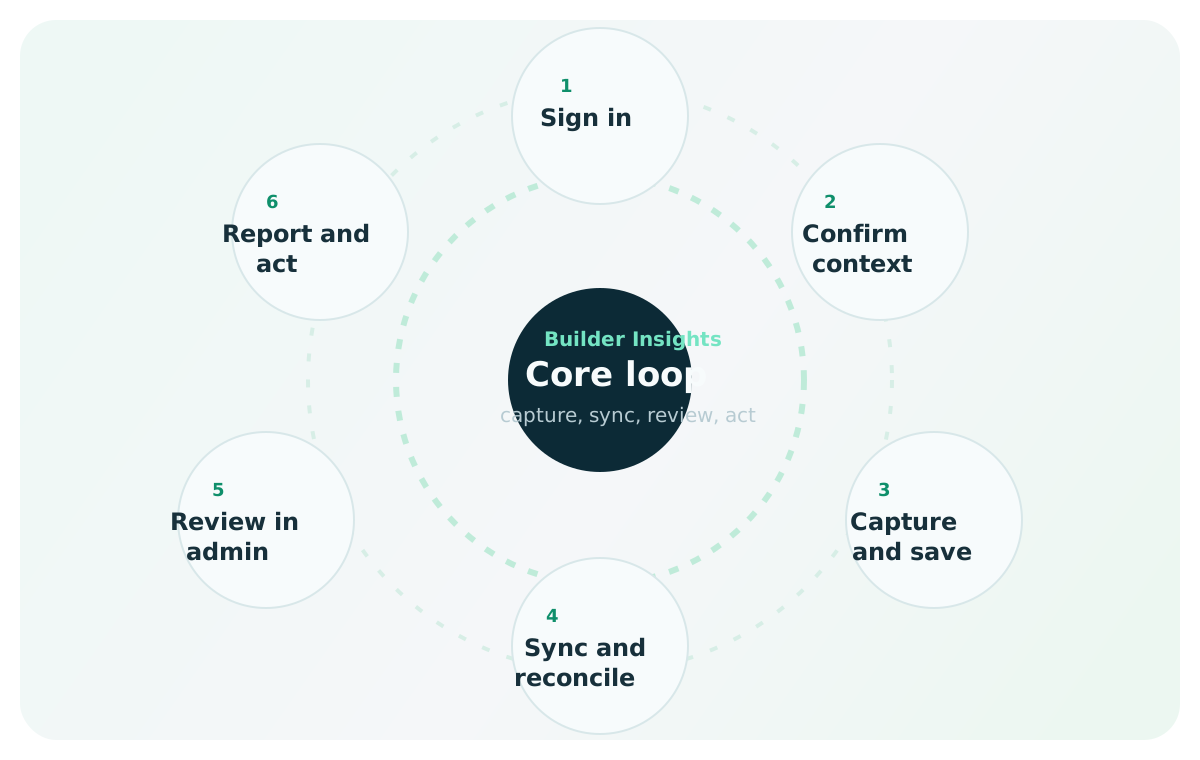
Journey model
The workflow only works when each stage reinforces trust
Users need confidence that sign-in is stable, context is accurate, capture is safe, sync will reconcile cleanly, and the result will actually become visible in admin reporting.
- every stage has a clear user expectation and a clear QA expectation
- offline and reconnect behavior are part of the normal workflow, not edge cases
- admin visibility is the proof that field capture turned into usable signal
End-to-end journey
Journey stages
Users enter the mobile experience or admin control plane with the expected identity flow and land on the right home screen.
Before capture, users verify the event or session context that drives later filtering and reporting.
Users enter text or voice notes, classify the insight, choose product areas, and assign sentiment or priority.
The mobile app persists the record first so the user gets confirmation even when the network is weak.
Queued items retry when connectivity returns without implying data loss or creating duplicate records.
Operators confirm the insight appears in search, detail views, dashboards, maps, or executive summaries.
Teams use the captured data to spot trends, compare events, escalate bugs, and guide follow-up work.
Screens along the path
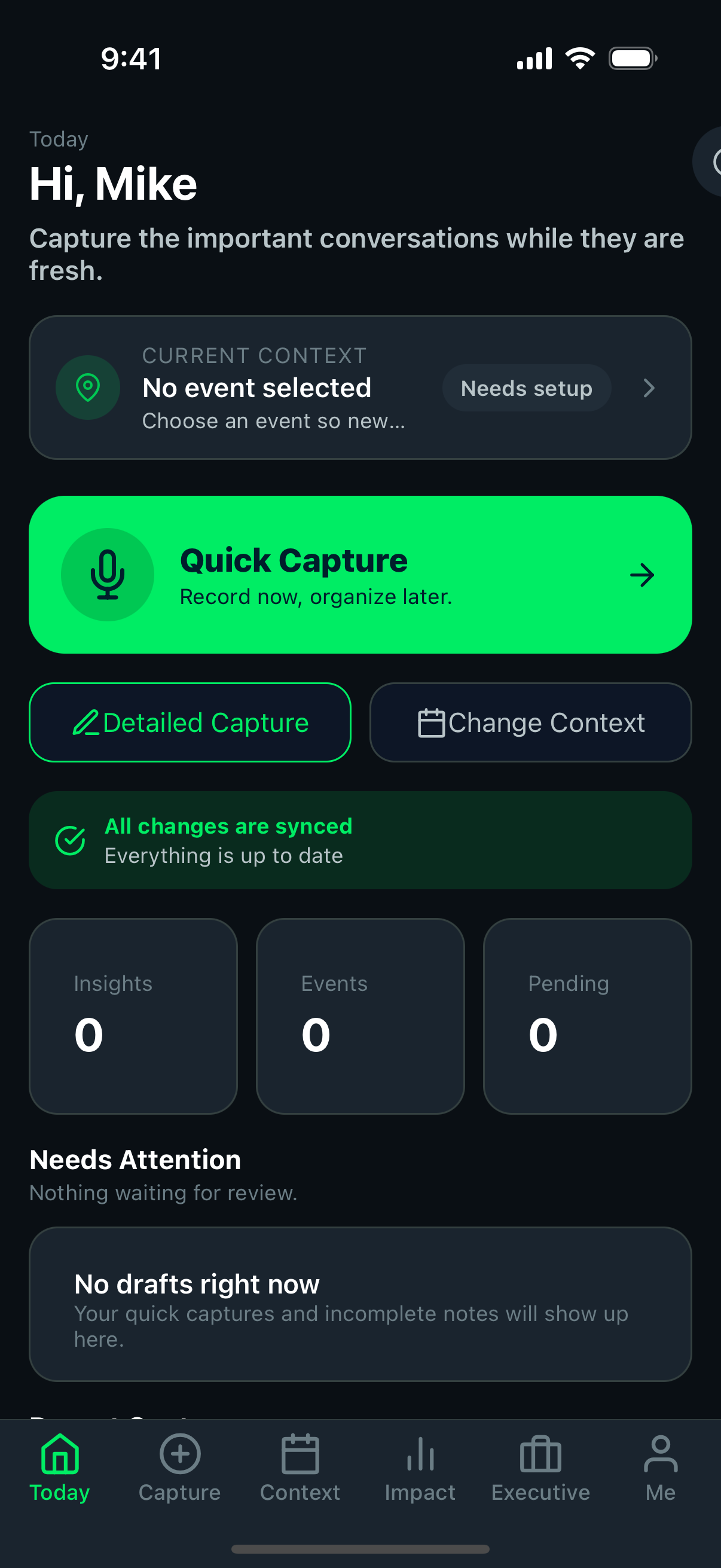 Mobile home
The entry point for sign-in recovery, context, and field activity.
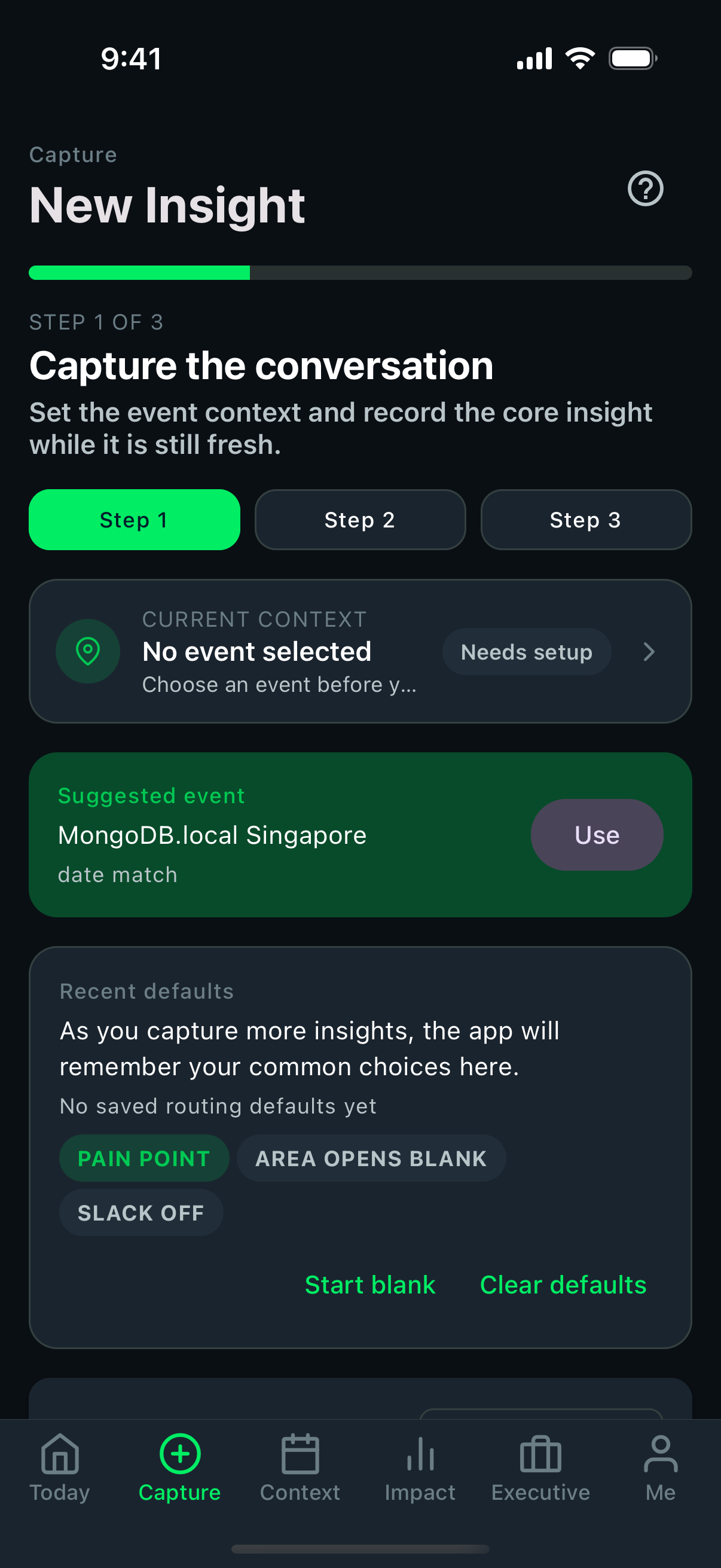 Capture flow
The core field action should stay fast, clear, and interruption-tolerant.
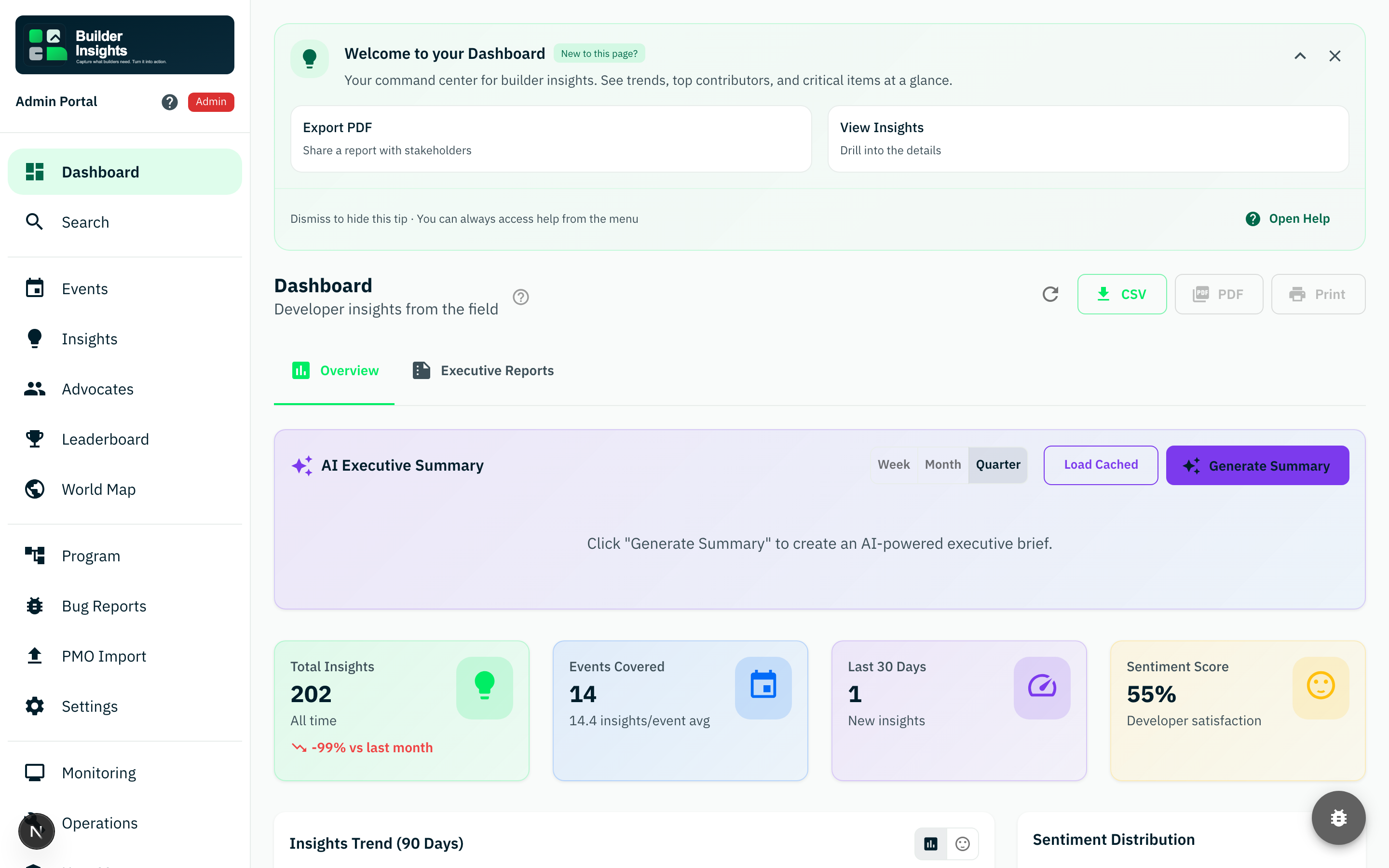 Dashboard review
Leaders and operators use summaries, charts, and activity views after sync completes.
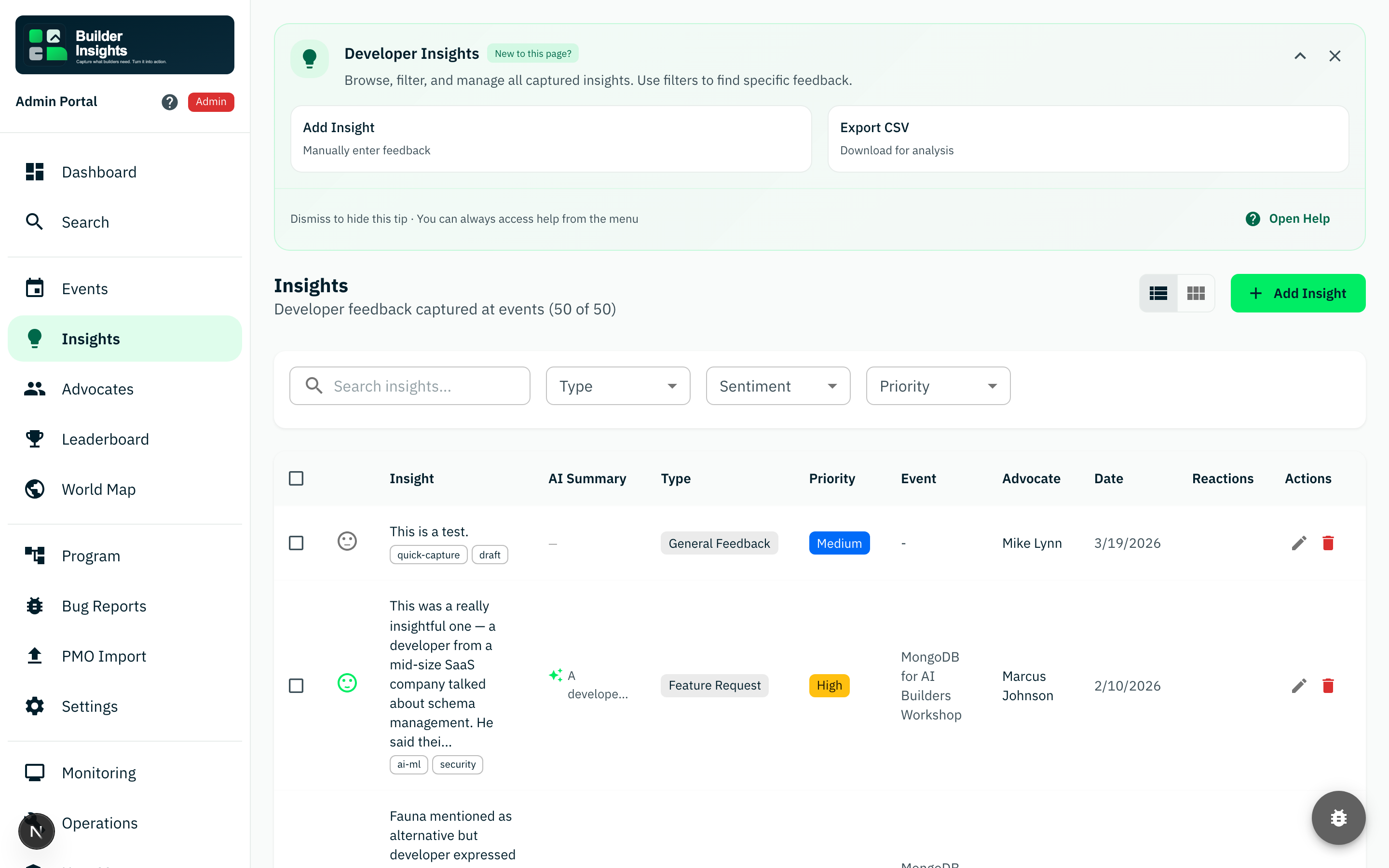 Insight verification
The captured record should be searchable, readable, and attributable in the portal.
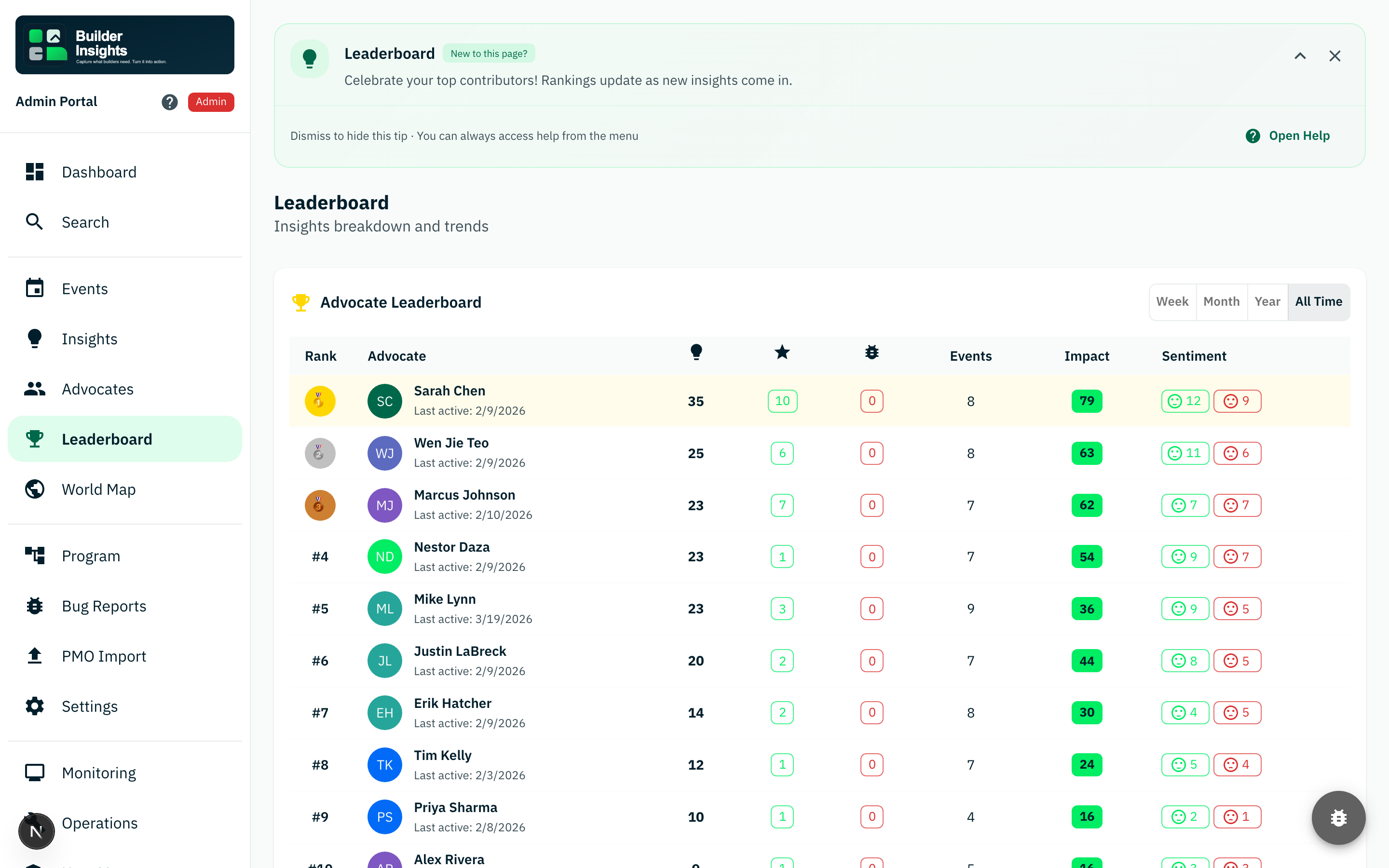 Leaderboard
Contribution rankings confirm attribution and help explain adoption patterns.
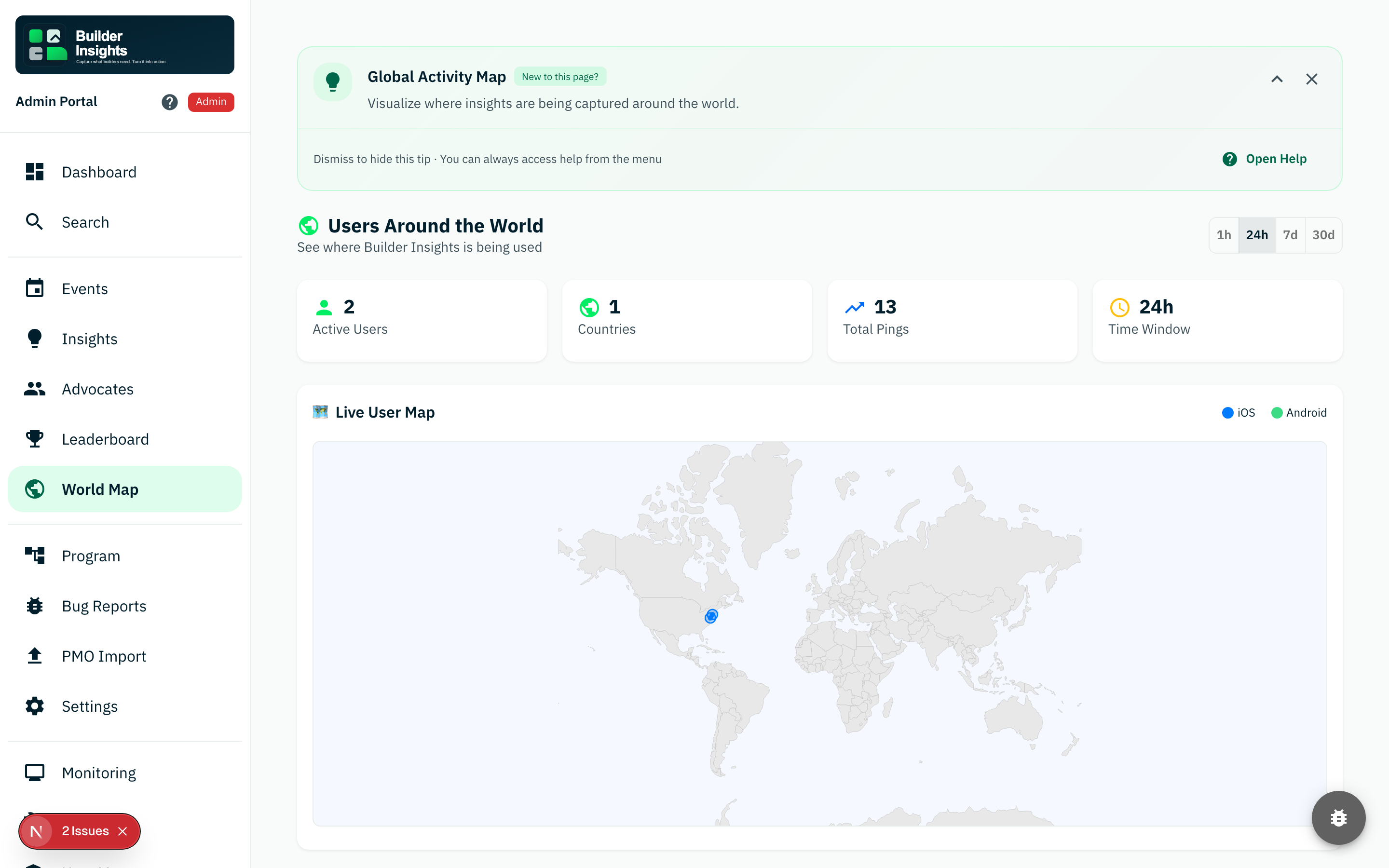 World map
Geographic view of live user activity shows global reach and regional coverage.
What good looks like
| Stage | Healthy signal | What to verify |
|---|---|---|
| Sign in | correct landing screen and stable session | user reaches Home or dashboard without auth loops |
| Context selection | right event or session is visible | later filters and attribution match the chosen context |
| Capture | save feels immediate | the UI confirms success without waiting on the network |
| Offline period | no suggestion of data loss | pending items remain visible and recoverable |
| Reconnect and sync | pending count trends back to zero | no corrupted or duplicate records appear |
| Admin review | the record appears where expected | search, detail, and dashboard views reflect the new data |
| Action and reporting | teams can use the data operationally | exports, summaries, and follow-up workflows still work |
Common breakpoints
Look here when users cannot enter the flow reliably or return to the right screen after reconnecting.
Look here when the app implies data loss, drops form state, or fails to preserve pending items.
Look here when records never show up in portal views, show up late, or appear duplicated.
If the loop breaks
Capture where it failed, then report against the smallest broken step:
- login
- context selection
- local save
- offline queueing
- reconnect sync
- admin visibility
- reporting or export
Then use: