Admin Screenshots
These screenshots were captured from the hosted admin control plane using a Playwright automation script. The tour and onboarding overlays are dismissed so every image shows the production UI as operators and leadership will see it.
Operator control plane
Use this gallery to explain how captured mobile data becomes searchable insights, event operations, and reporting views in the admin control plane.
Demo access
Admin control plane: https://devrel-insights-admin.vercel.appLogin: demo@devrelinsights.appCode: 999999
These access details still use legacy devrel identifiers during the transition.
Screen map
Public pages
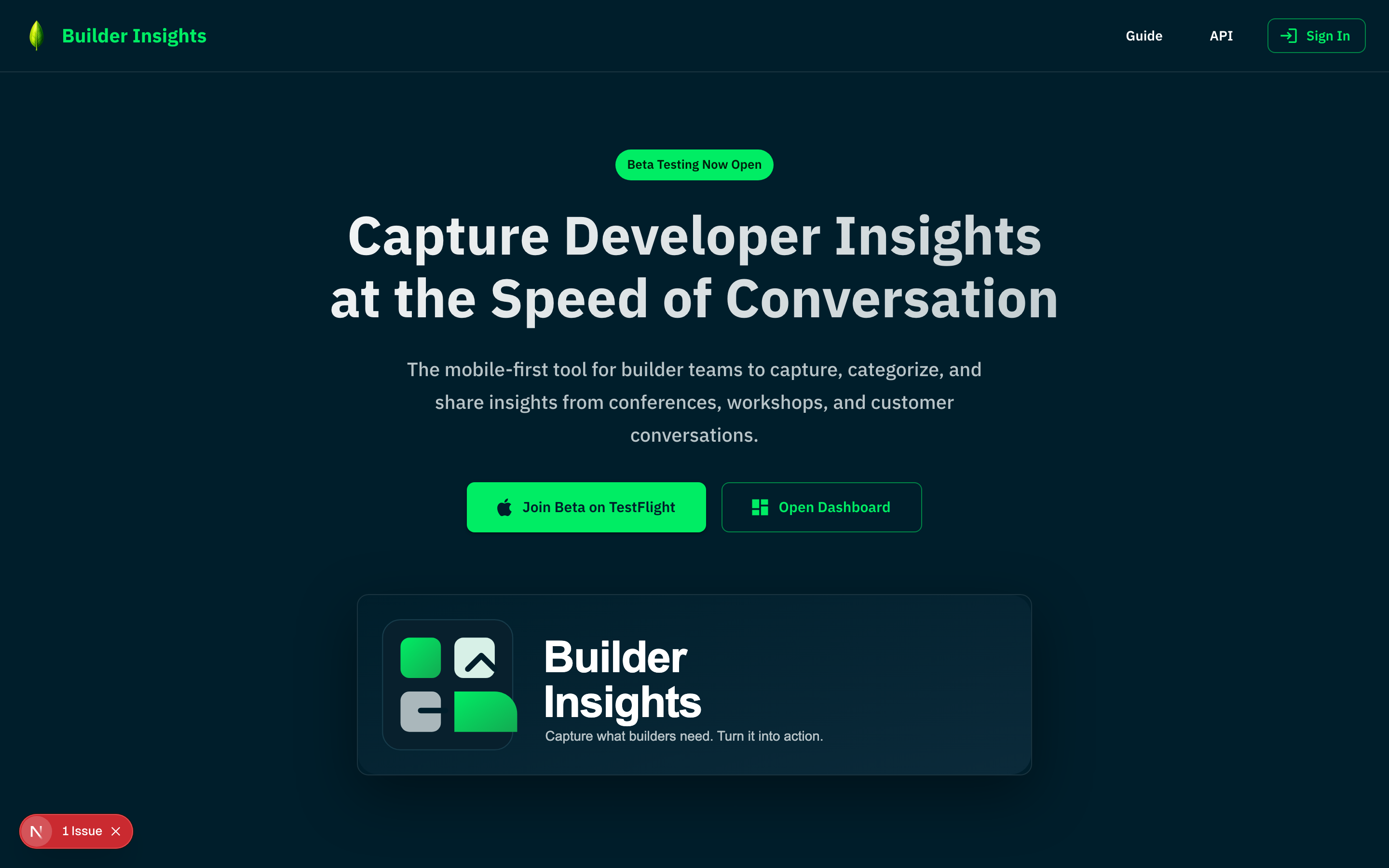 Landing page
The public entry point for the product, introducing Builder Insights to new visitors.
- presents the core value proposition for builder teams
- links to TestFlight for mobile and the admin dashboard for web
- dark-themed hero with product branding and feature highlights
 Login
LoginMagic-link and verification-code authentication flow.
- passwordless sign-in via email verification code
- supports demo and tester accounts for reviews and QA
- redirects authenticated users directly to the dashboard
Core admin views
Annotated portal view
Dashboard reading guide
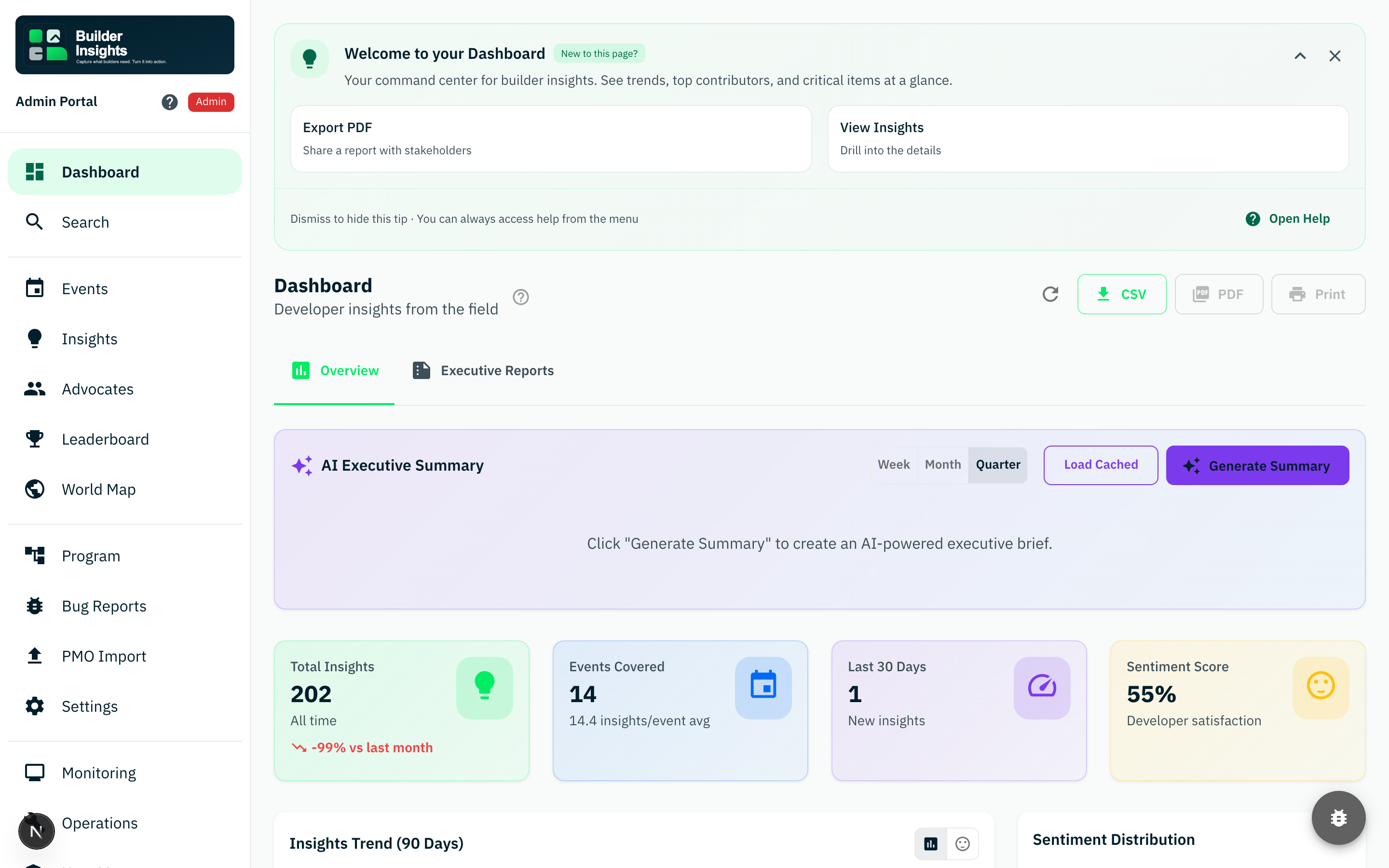
The dashboard is often the first place leadership and operators decide whether the system feels trustworthy. This view should communicate trend visibility, readability, and signal density without becoming noisy.
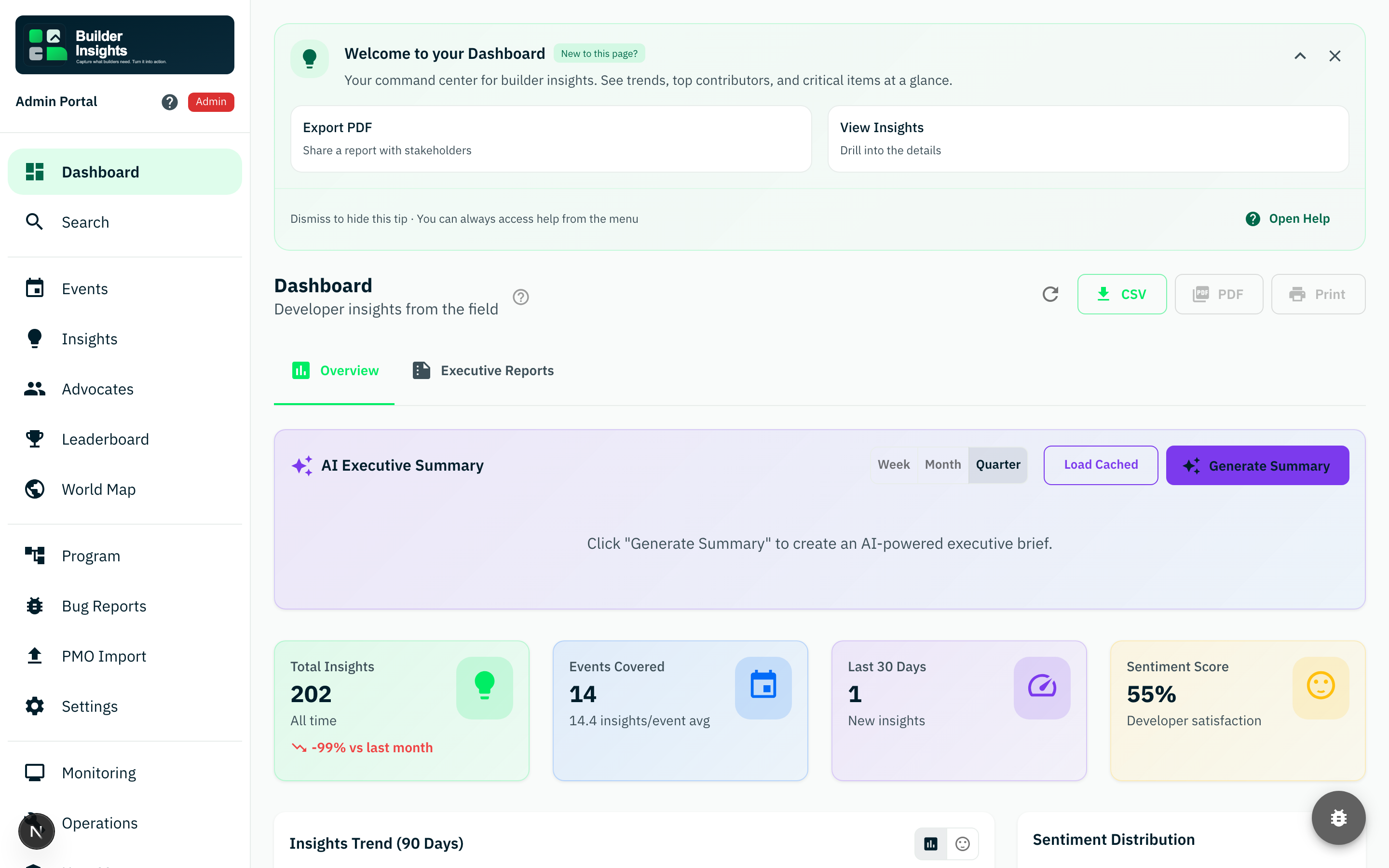
The opening area should quickly answer whether the system is healthy and what changed most recently.
Comparisons and summaries should be understandable at a glance, especially during demos or executive review.
The dashboard should feel connected to deeper verification paths rather than being a dead-end summary surface.
Decision
How to use admin screenshots well
These images are strongest when they help a reviewer understand what a page is for, what "healthy" looks like, and where to go next when something feels wrong.
- pair summary pages with the detailed verification pages they should lead into
- review whether charts and lists tell the same story as underlying records
- use screenshots to align on product meaning, not only visual polish
DashboardThe main reporting surface for operators and leadership.
- AI executive summary, trend charts, and sentiment distribution
- total insights, events covered, and recent activity at a glance
- CSV, PDF, and print export options for stakeholder reporting
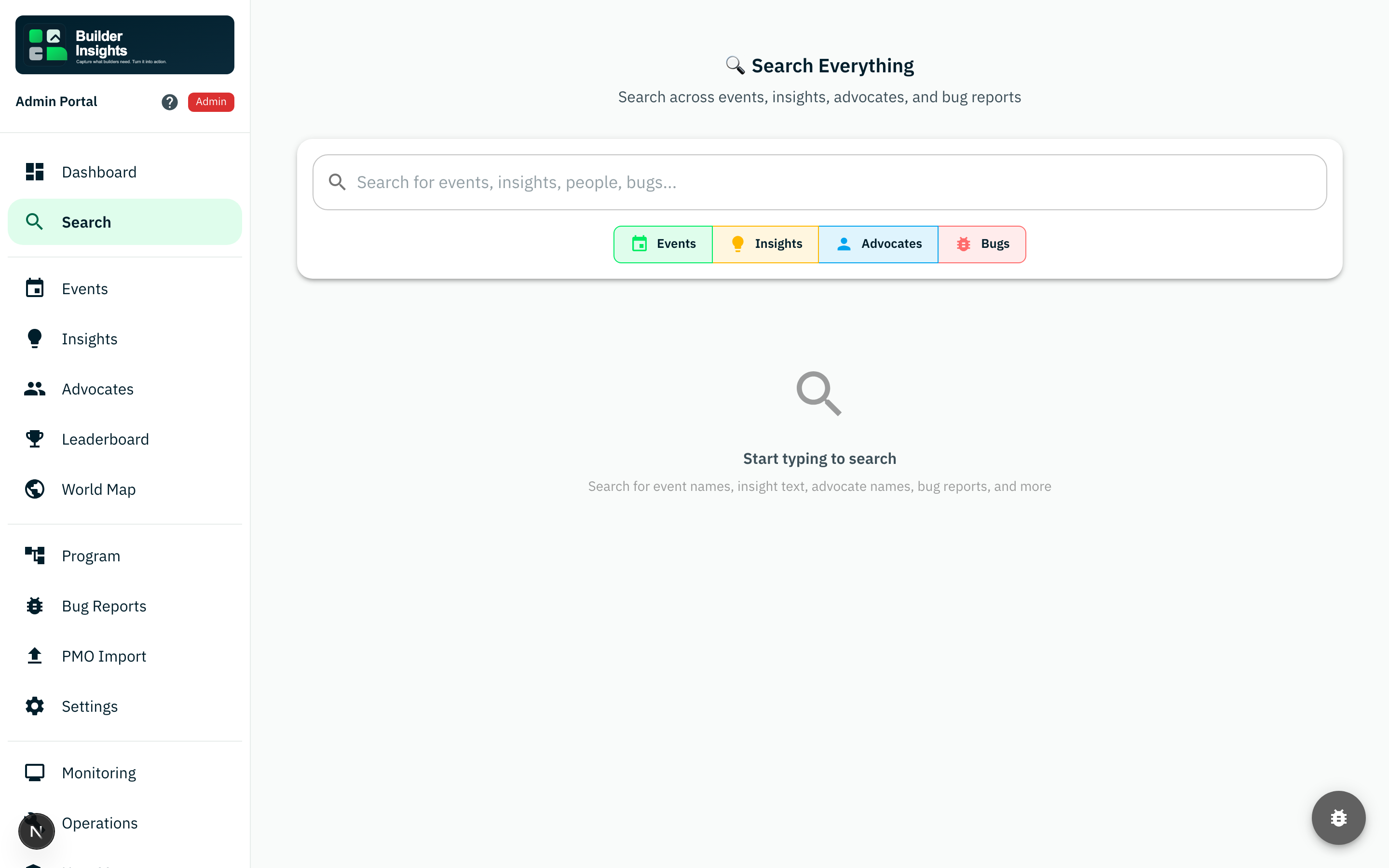 Search
Global search across insights, events, and advocates.
- full-text search with instant results
- cross-entity discovery from a single input
- useful for quickly locating specific records or verifying sync
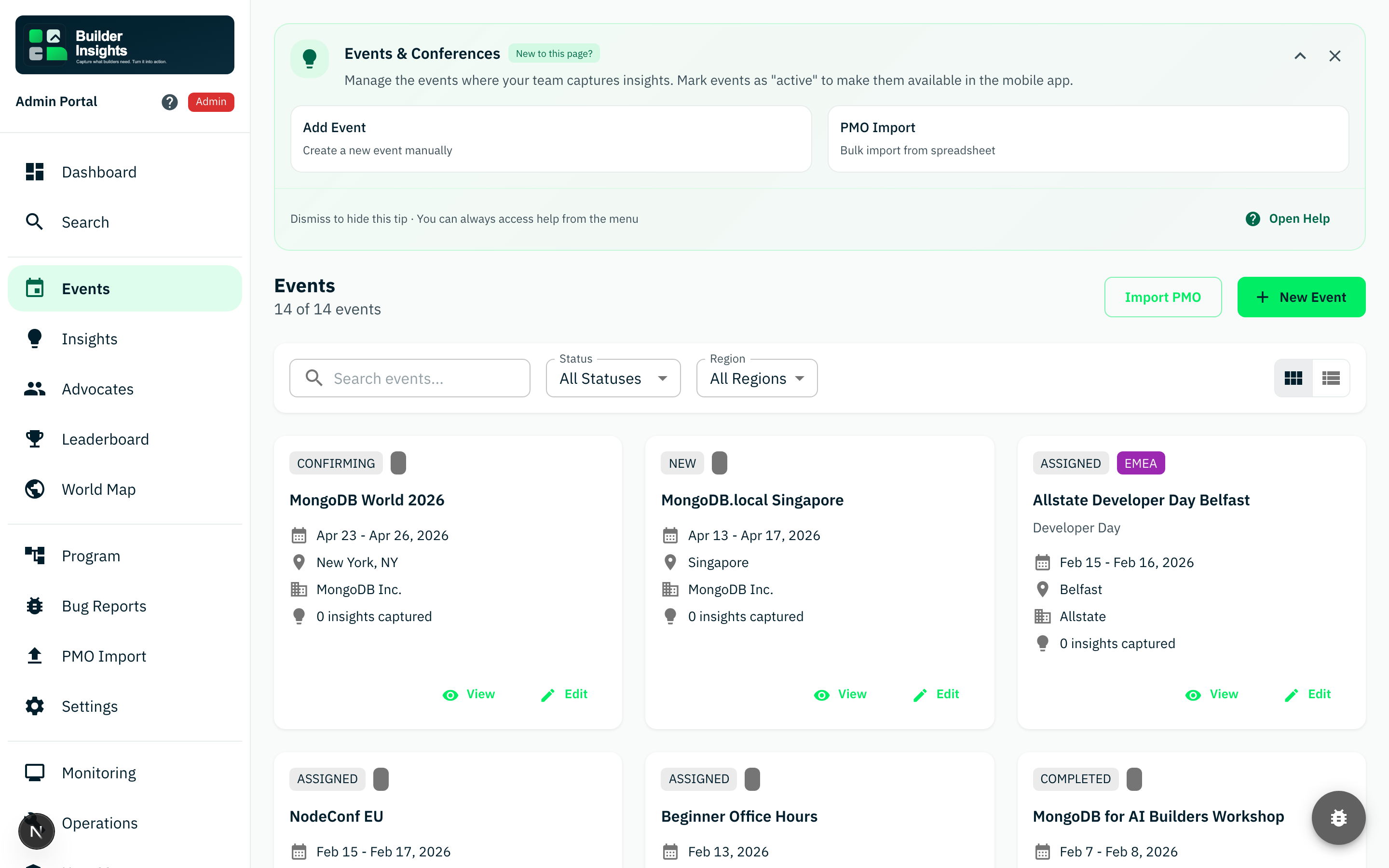 Events
The place where mobile capture context is created and managed.
- card and list views with status, region, and date filters
- event metadata must be clean enough for later reporting filters
- operators can create, edit, and manage event lifecycle
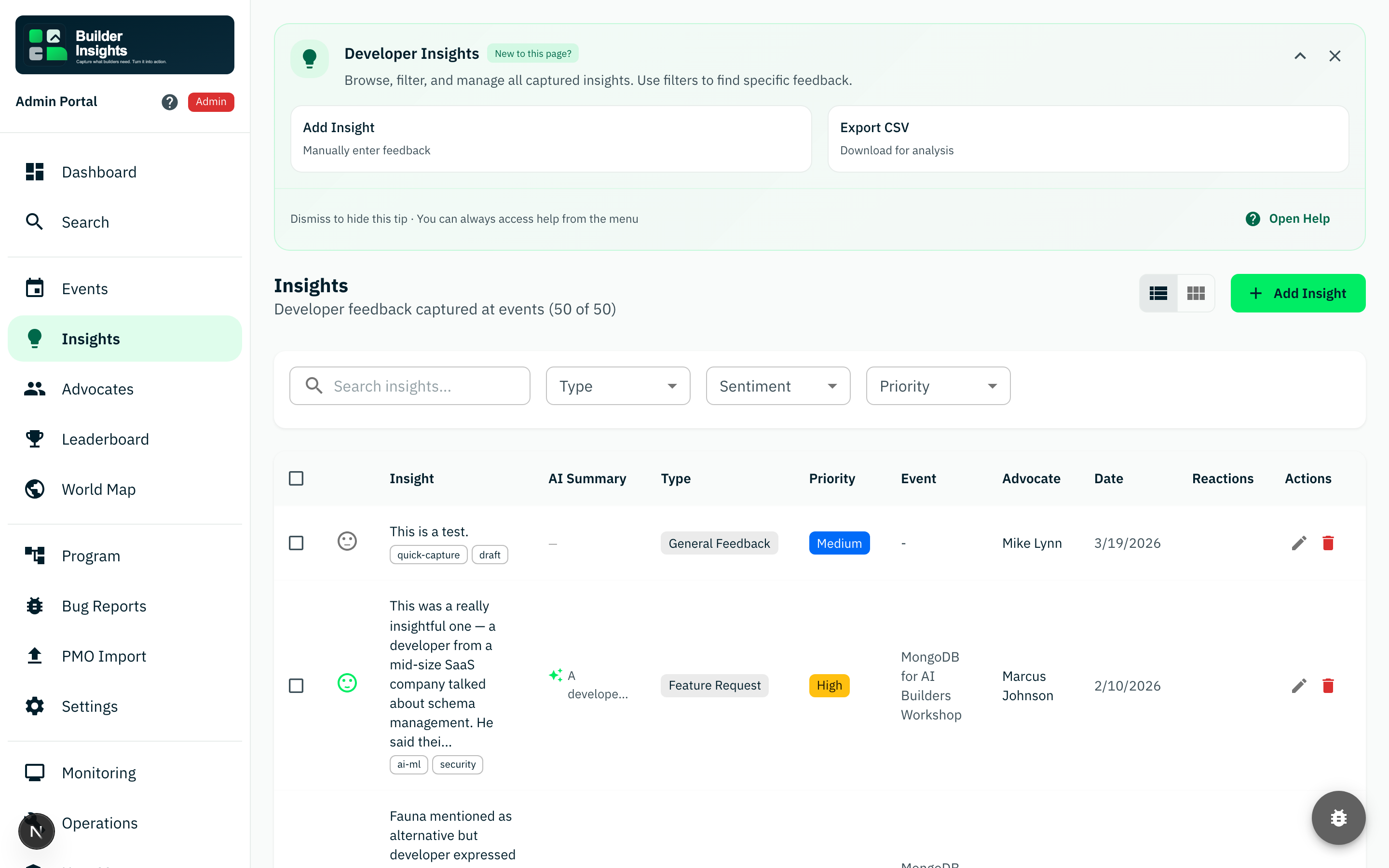 Insights
The most direct verification view for newly captured records.
- search and filters by type, sentiment, and priority
- AI-generated summaries alongside original capture text
- this page is critical for QA after reconnect and sync scenarios
Team and community views
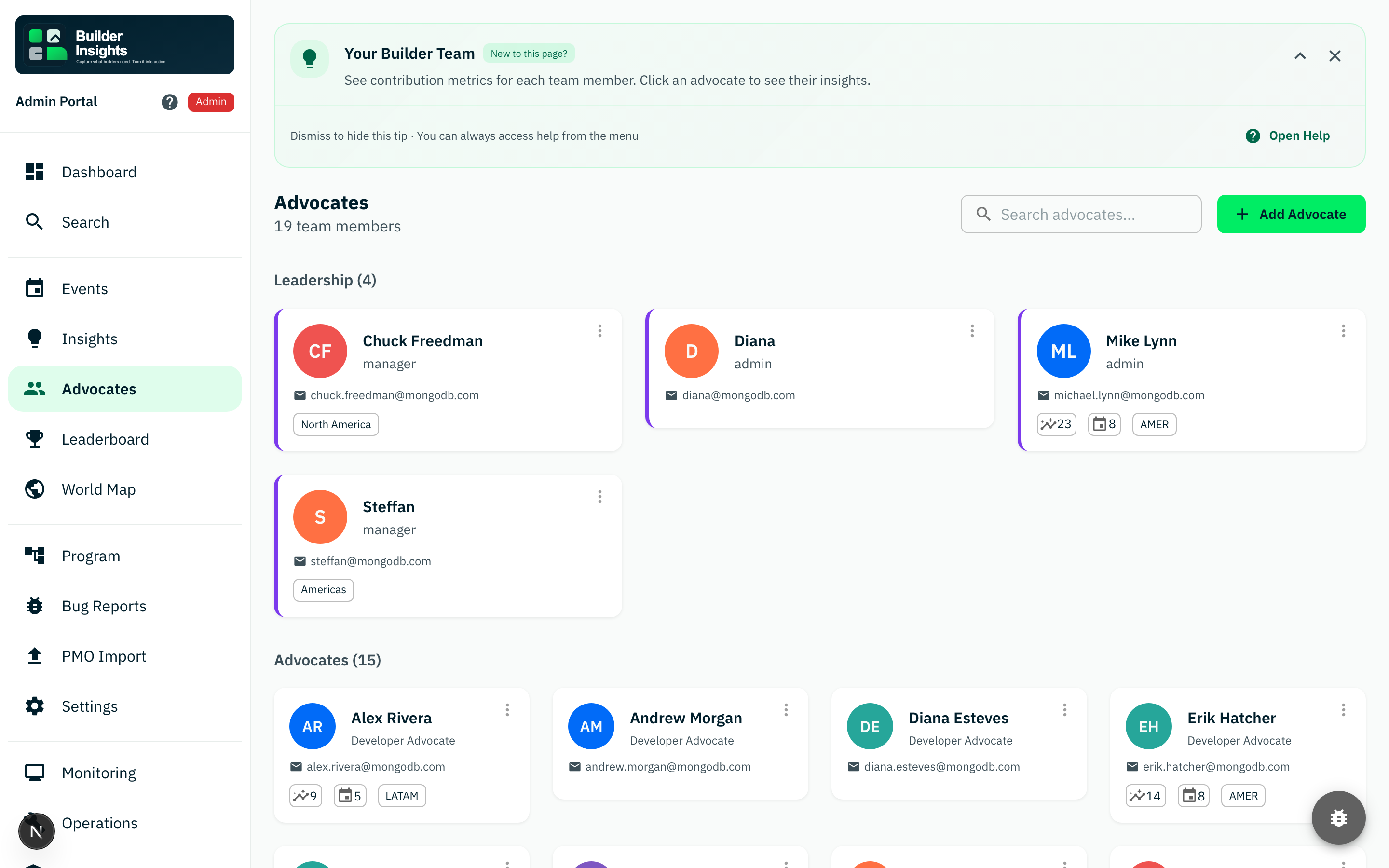 Advocates
Team member directory showing all advocates and their activity.
- role assignments, active status, and last activity timestamps
- links to individual contributor profiles and insight history
- management surface for team composition and access
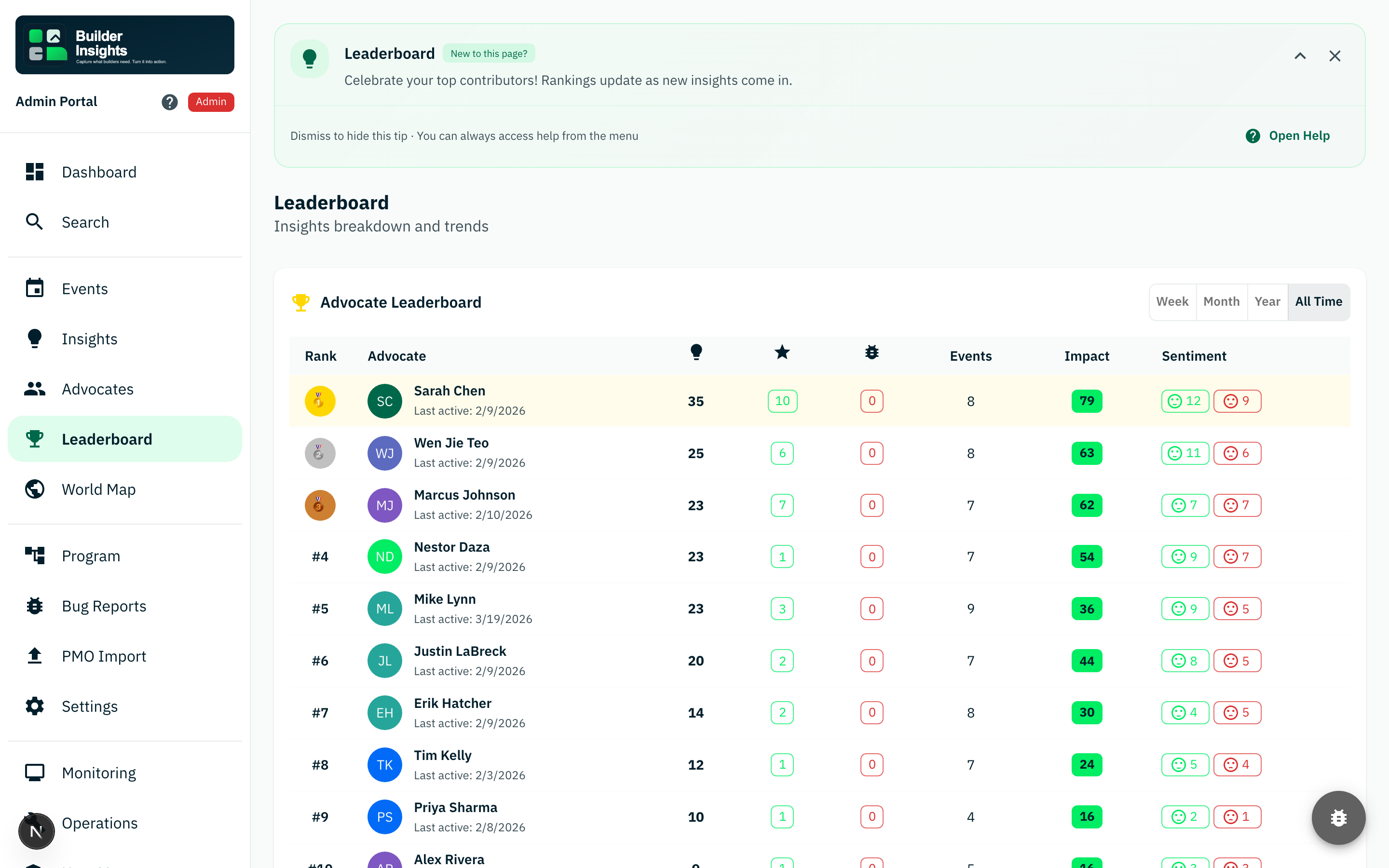 Leaderboard
A comparative view of contribution and activity across the system.
- ranked by insights, highlights, reactions, events, and impact score
- time-range filters for week, month, year, and all-time views
- sentiment breakdown per advocate for quality signal
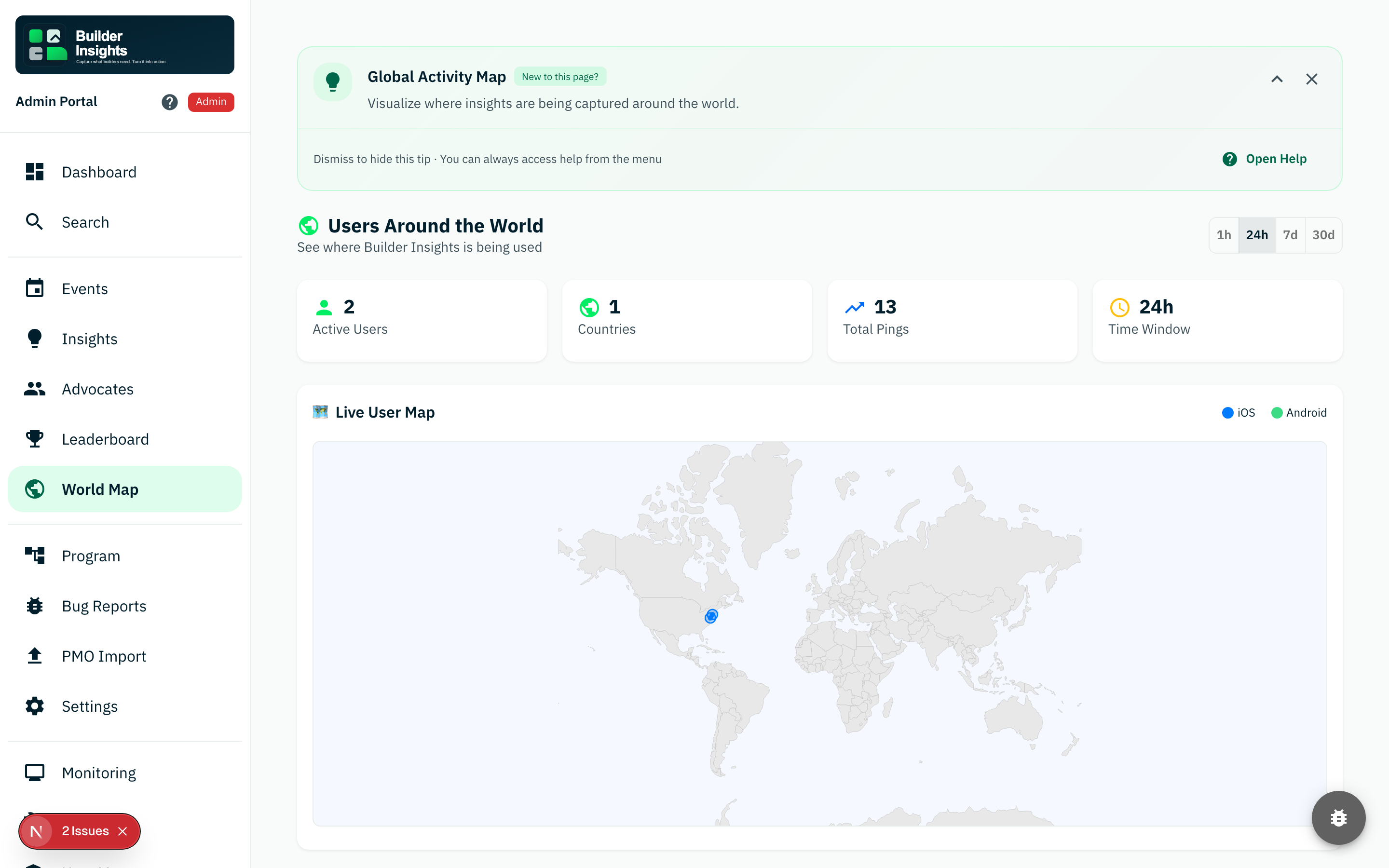 World map
A geographic lens on live user activity and global reach.
- real-time active user locations on an interactive map
- time window filters from 1 hour to 30 days
- iOS and Android platform breakdown for usage visibility
Workflow and operations views
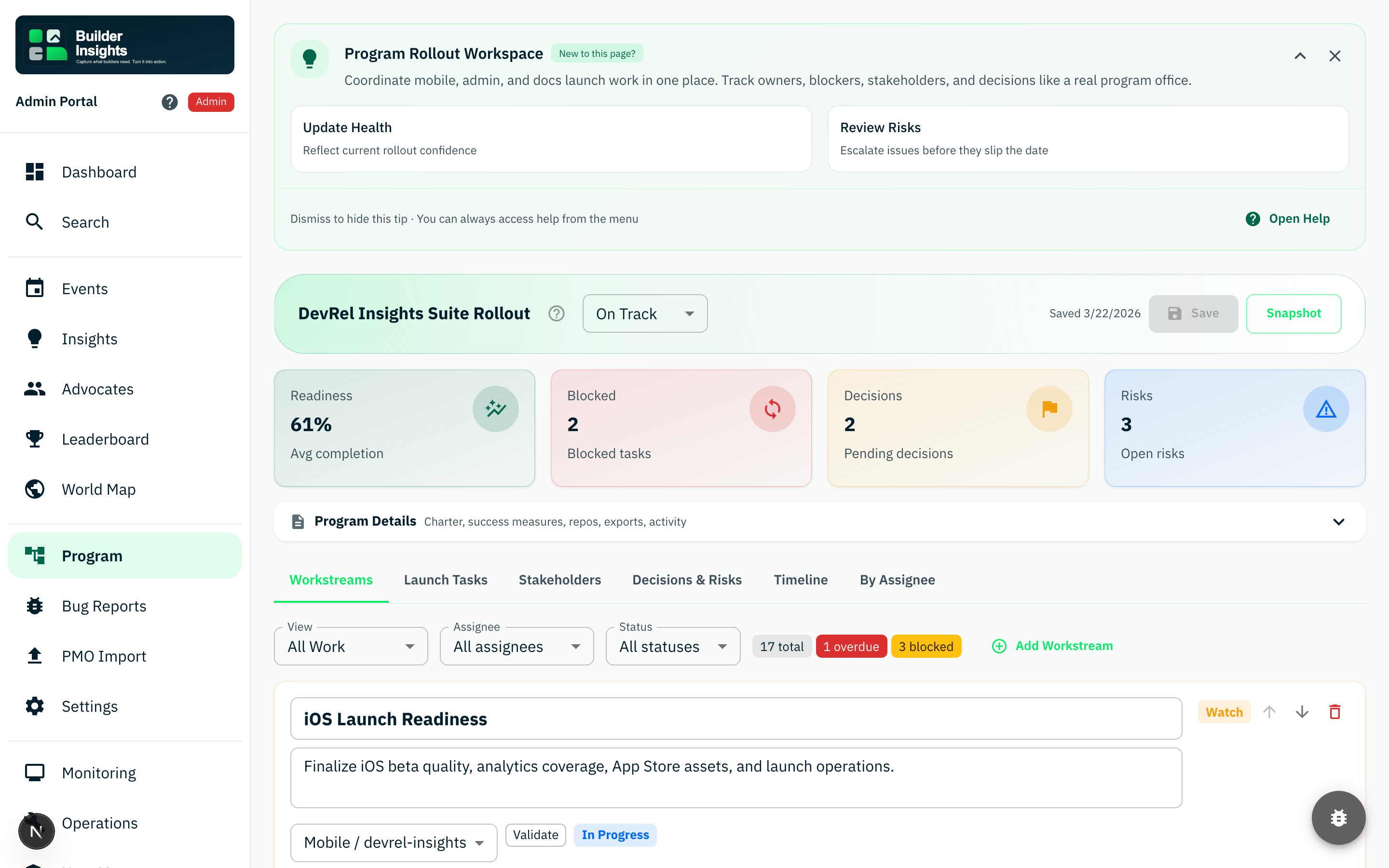 Program
The program rollout workspace for managers and leadership.
- milestone tracking, rollout status, and task management
- team collaboration with comments and status updates
- strategic planning view for program-level coordination
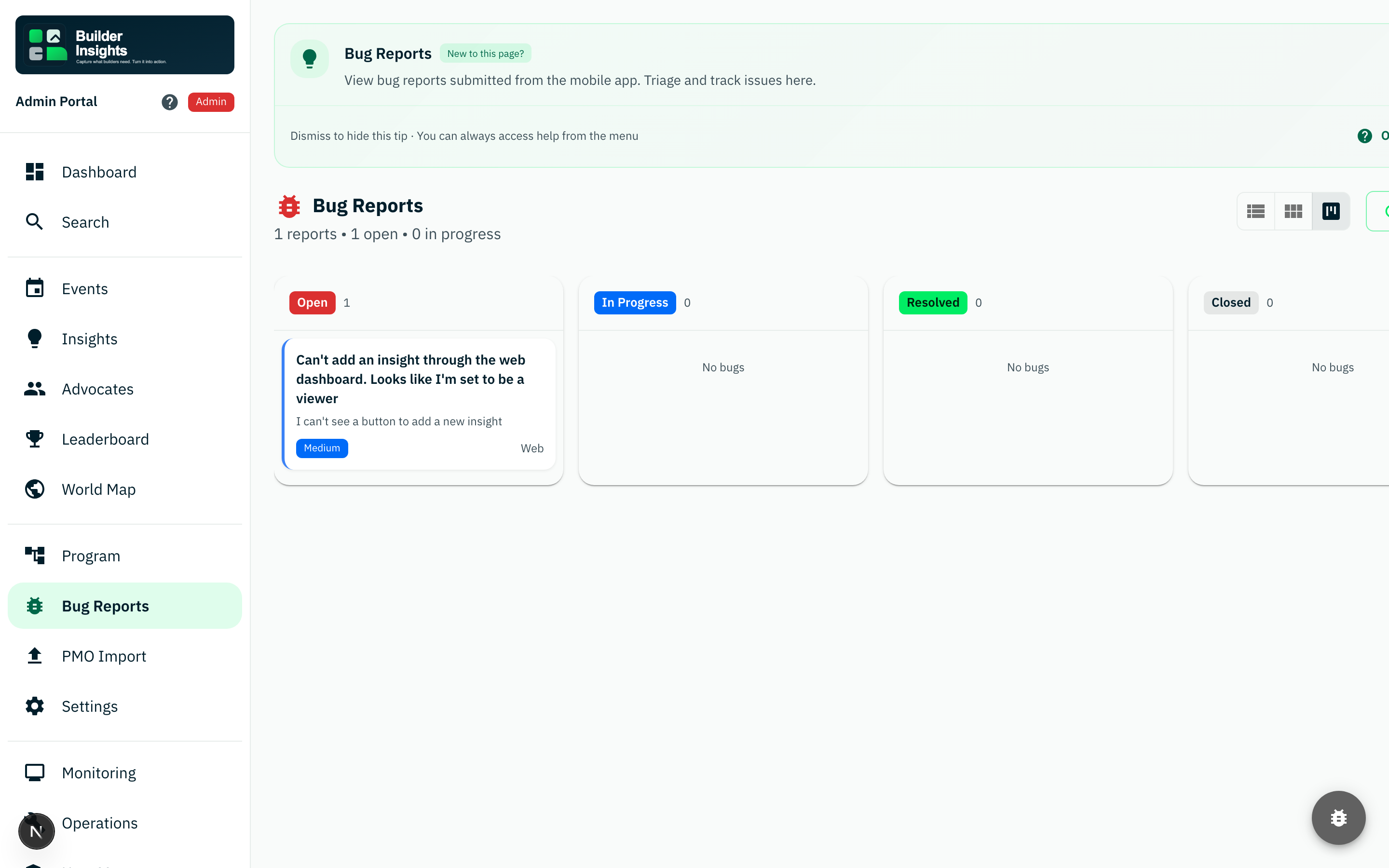 Bug reports
Triage and management of bug reports submitted from the mobile app.
- incoming reports with screenshots, device info, and severity
- status tracking from new through resolved
- direct line from field issues to operator awareness
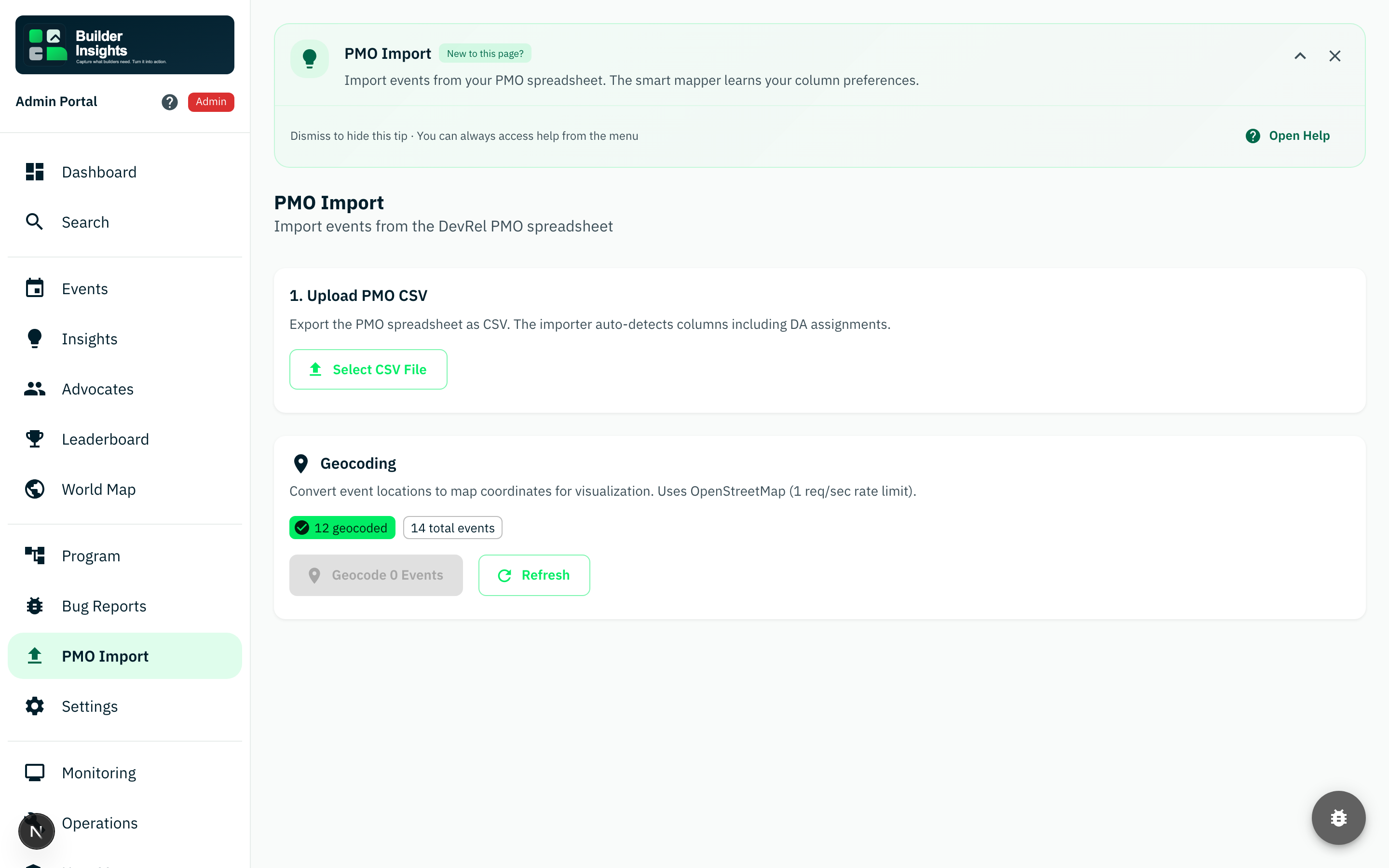 PMO import
Bulk event import from PMO spreadsheets for managers.
- spreadsheet upload with column mapping and validation
- preview and confirm before committing imported events
- reduces manual event creation for large conference schedules
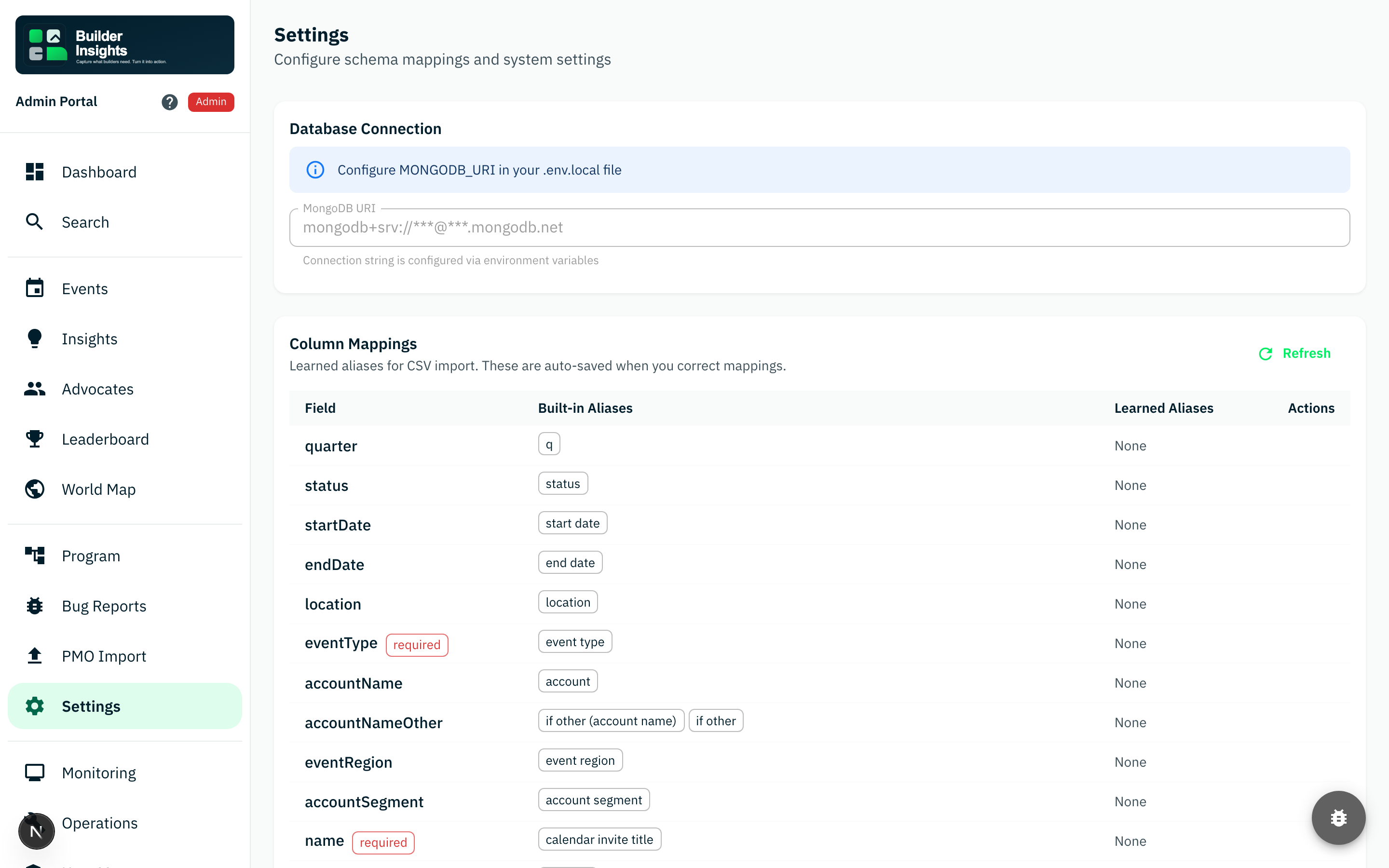 Settings
The configuration surface for schema aliases and environment-driven behavior.
- column mappings, schema configuration, and display preferences
- tour restart and help system controls
- operators should understand what is safe to change here
Admin-only views
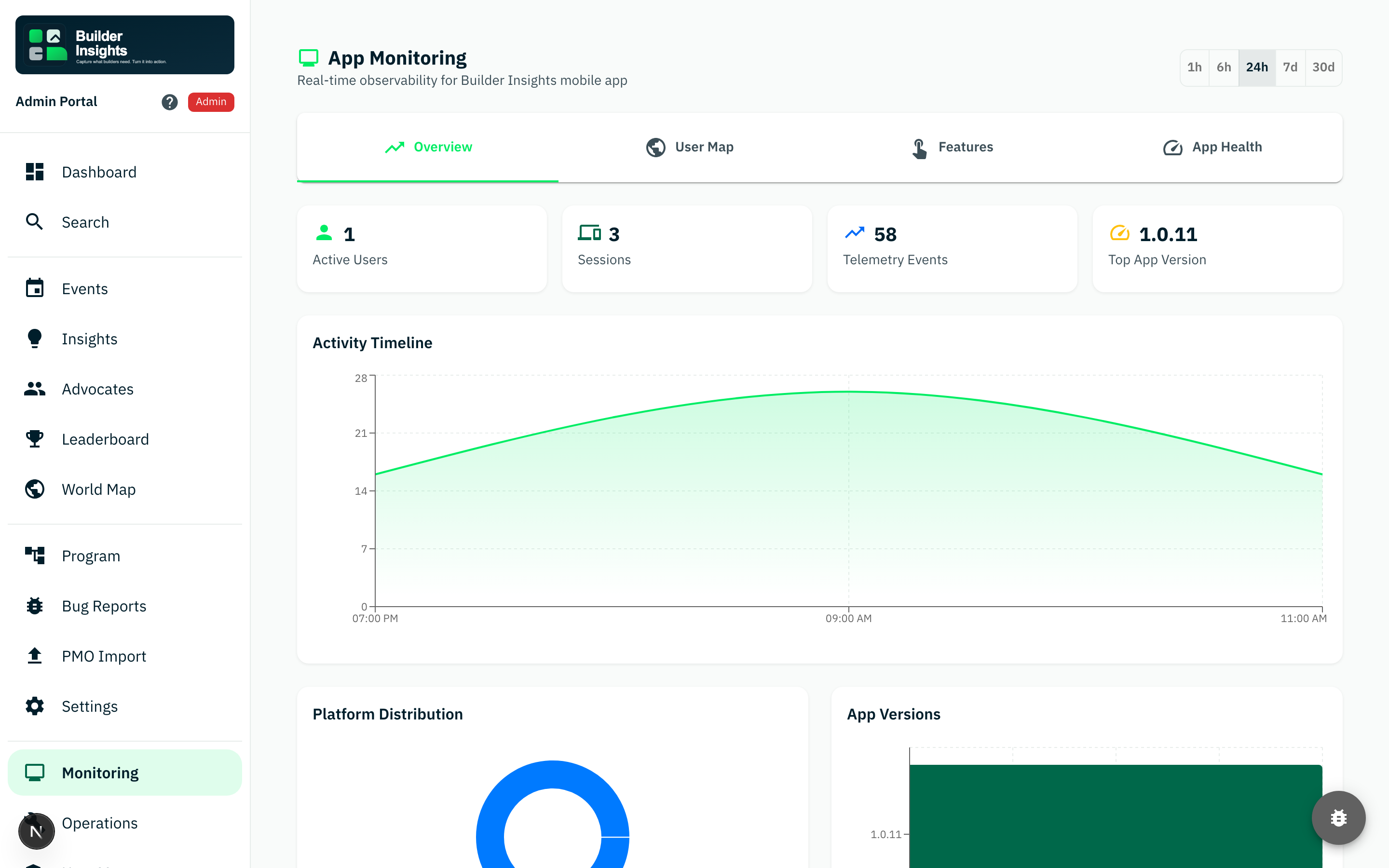 Monitoring
System health and performance monitoring for administrators.
- real-time system metrics and health indicators
- API performance, error rates, and resource usage
- early warning surface for operational issues
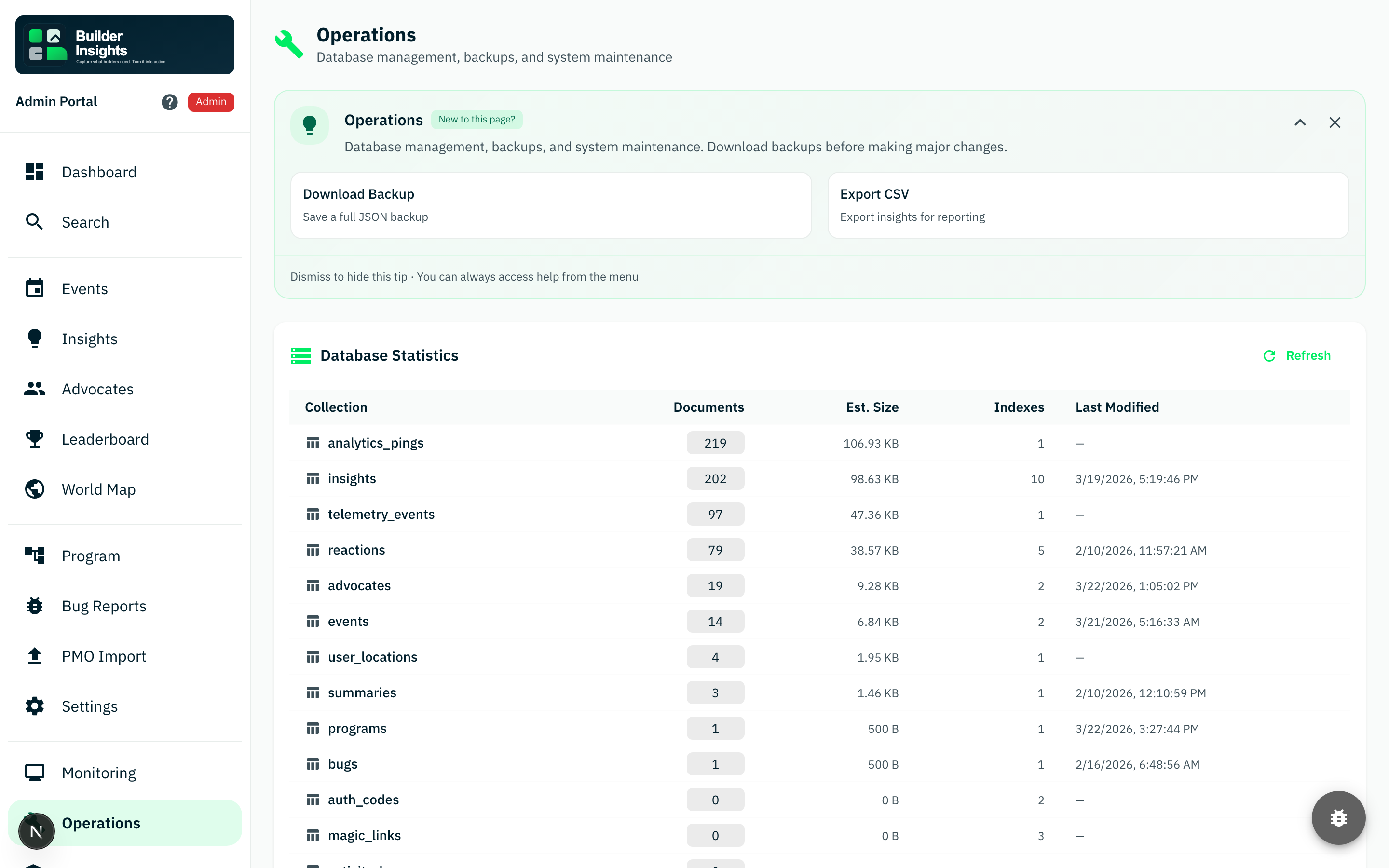 Operations
Database operations, backups, and maintenance tools.
- database statistics, collection sizes, and index health
- backup creation and restoration capabilities
- admin-only access for system-level maintenance tasks
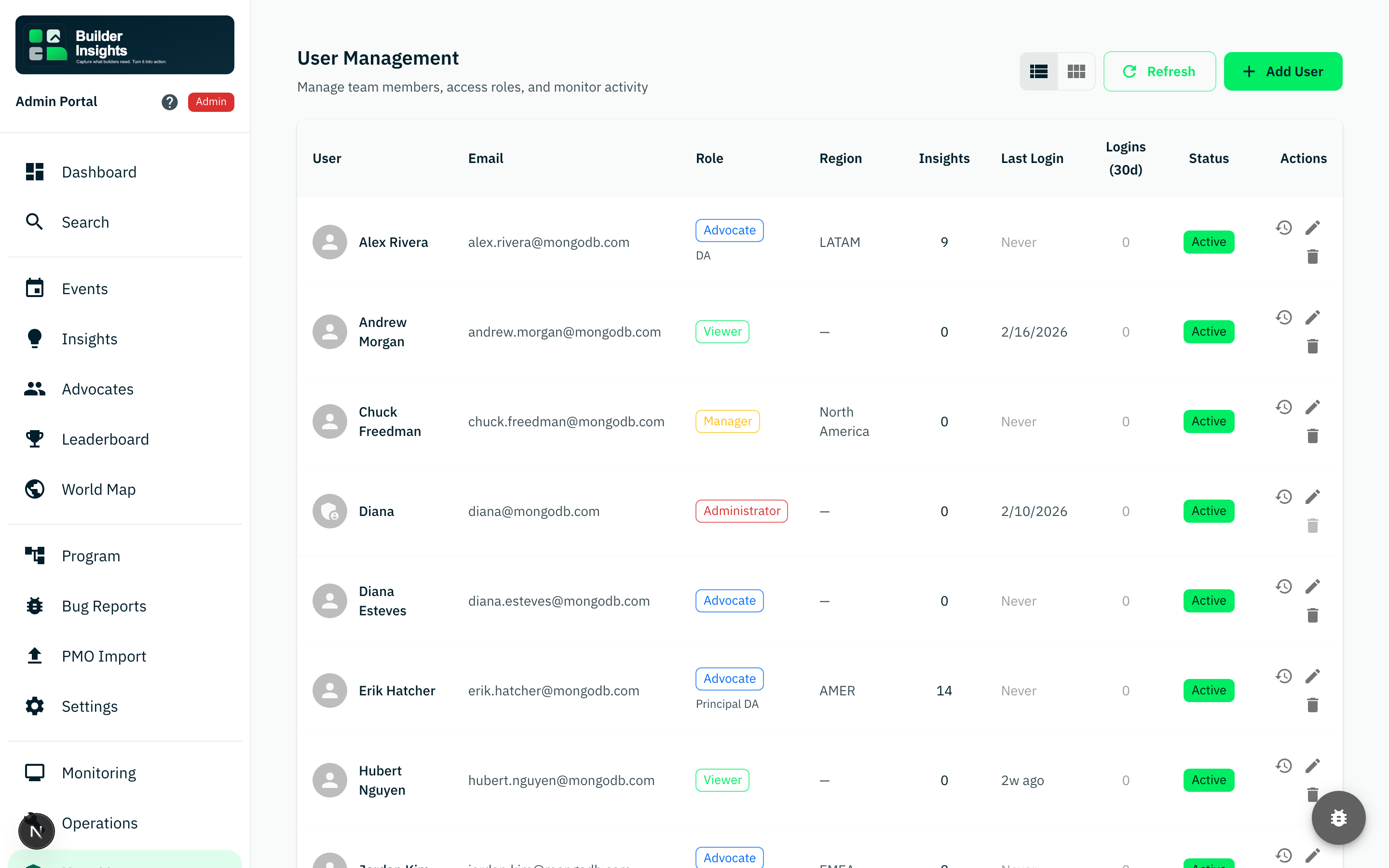 User management
User account administration and role assignment.
- create, edit, and deactivate user accounts
- role assignment across admin, manager, advocate, and viewer tiers
- access audit and session management
Operator read path
Verification path
Insight page reading guide
For QA and operators, this is one of the most important admin surfaces because it confirms whether synced field data became usable, searchable system data.
This area should let a reviewer find recent synced content quickly, especially during reconnect validation.
The list should preserve enough source meaning that the operator trusts what was captured in the field.
The page should make it obvious how to move from finding a record to reviewing, exporting, or acting on it.
Confirm the system looks healthy and recent activity is visible.
Validate that source events exist and carry the right metadata.
Search for the exact record that should have arrived from the mobile app.
Confirm the same data supports leaderboards, maps, and executive storytelling.
QA check
Admin screenshot QA checklist
- can a stakeholder understand what each screen is for without a spoken walkthrough?
- do summary surfaces, detail surfaces, and operational surfaces feel like one coherent product?
- does the portal make recent mobile data feel visible, attributable, and actionable?
- are admin-only views (monitoring, operations, user management) clearly separated from daily operator views?
Source workflow
The capture script lives in this repo:
scripts/capture-admin-screenshots.mjs
Run it with:
npm run screenshots:admin
The admin app also has its own screenshot script at scripts/take-screenshots.ts that generates
the same set locally.